 |
EDI
Viewer - AC1 Form
|
The AC1 Form window is used to edit and enter AC1 forms for
facility cost centers, or to add new facility cost centers.
The Select an AC1: list box at the top of the
window lists the date prepared and type for all AC1 forms for
this FCC. Picking a selection from this list box will show you
that AC1 form. This allows you to see a complete audit trail of
AC1 forms. The list box at the top of the window will be empty
for new AC1 forms until you enter your data and save it.
Picking an AC1 from the list that is not the most recent AC1,
will put that AC1 form into a Read Only status. Since there is a
newer AC1, all previous AC1s cannot be editted preserving your
audit trail, but still allowing you to view and print them.
Due to Registry changes, there are now 5 different AC1 types: Setup, Change, Change Operator, Terminate, and Un-Terminate. Please click this AC1 Registry Changes 2005 for more detailed information.

| |
|
To add a new Facility Cost Center, you can do
any one of the following:
- If FCC Explorer is closed, just click the AC1
toolbar button to get to the AC1 window and then
follow the steps below to add a new AC1 form.
- If FCC Explorer is open:
- Switch to Facility view by clicking the
Facility button on the right side of the
screen.
- Click on the facility the new FCC will
belong to and then click the AC1 toolbar
button. When you add a new AC1 now, the
facility will be the facility you clicked
on from FCC Explorer.
|
|
To add a new AC1 or edit an existing AC1 for
an existing Facility Cost Center, do the following:
- Open the FCC Explorer window.
- Click on the FCC you want to add or edit a AC1
form for from the FCC Explorer window, and then
click on the AC1 toolbar button. This will take
you to the AC1 window and show you the last AC1
that was entered.
- Follow the steps below to add a new AC1 or just
edit the AC1 you see on the screen. Only the last
AC1 form is editable and all previous AC1s have
Read Only status because they are your audit
trail of what you have filed.
To add or insert a new AC1, you can do any one
of the following:
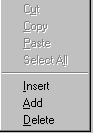
- Right-clck your mouse to get a popup menu and
choose add or insert.
- Press the shortcut keys, CRTL and A (add) or CTRL
and I (insert).
- Click the edit menu at the top of the screen and
then choose add or insert.
Note: When adding a new AC1, you
must use a date prepared that is after the most
recent date prepared for this FCC. All previous AC1
forms are then placed in a Read Only mode, preserving
your audit trail.
To delete a AC1, click on the row you want to
delete and do any one of the following:
- Right-clck your mouse to get a popup menu and
choose delete.
- Press the shortcut keys, CRTL and D.
- Click the edit menu at the top of the screen and
then choose delete.
Note: You will not be able to
delete an AC1 if you are in read only mode.
|
 |
| To enter AC1 ownership,
click on the tab Part 4 - Ownership. When
you change tabs, your data is saved, so in this case, all
data on tab AC1 - Parts 1-3, 5, 6 would
be saved if it passed validation. To enter AC1 Reported EUB Facilities, click on the tab Part 2.10 - Reported EUB Facility. When you change tabs, your data is saved, so in this case, all data on tab AC1 - Parts 1-3, 5, 6 would be saved if it passed validation.
|
|
| To Print an AC1 form, click the
Print toolbar button or choose Print from the File menu. |
|
Business Rules:
Creating a 'Terminate' AC1 will automatically update the Termination Date, Last Status Year, and Status in the FCC Cost Center Setup window
Creating a 'Change' AC1 does not change the status of the FCC in the FCC Cost Center Setup window
A Setup AC1 can be linked to several Previous FCC's in section 2.9. Section 2.5 (the Remaining Userful Life) of the FCC will be determined by the first Previous FCC chosen in
this scenario. Capital from the Previous FCC's should automatically transfer to the first AC2 created for this new FCC.