
|
EDI Viewer - Business Associate |
The Business Associate window is used to edit and enter royalty clients used in the Allowable Costs module. Client codes can be used on AC1, AC2, and AC3 forms.
The business associates will be sorted by Client Name, but you can sort by any column by clicking on the heading of that column. For example, to sort by client code, click the Client Code heading button. Clicking it more than once will sort the data in ascending or descending order.
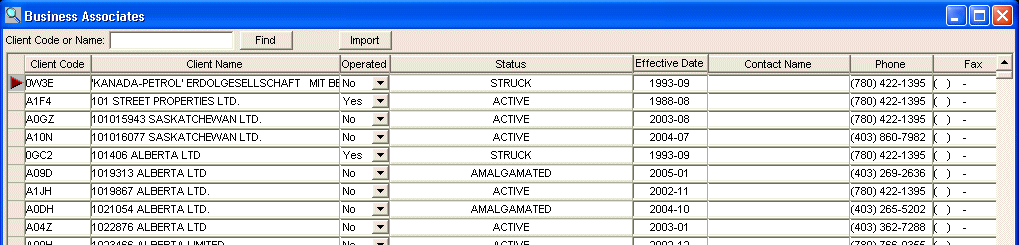
Columns on the window are:
| Client Code | the royalty client ID number assigned by the EUB for this client. |
| Client Name | the full name of the royalty client. |
| Operated | Yes, if you are the operator of this facility, No if you are not the operator this facility. |
| Status | The status this client code has within the Registry. |
| Effective Date | the date this royalty client code was made effective the EUB royalty client list. |
| WIO Start | the WIO Start date listed on the Business Associates file. |
| WIO End | the WIO End date listed on the Business Associates file. |
| Contact Name | the contact person for this client code. This is used to keep a list of your contacts for your partners. |
| Phone | the business associate phone number. |
| Abbreviated Client Name | A nickname for the Client Code, listed on the Business Associates file. This may be useful when working with numbered companies. |
| Protect | Yes, if you want to protect the row when importing and updating client codes. |
To add or insert a new client code, you can do any one of the following:
Now go to EDI Viewer: Note: You will not be able to delete a client code once it has been attached to a facility cost center. |
 |
| To Print a business associate report, click the Print toolbar button or choose Print from the File menu. | |
| To Export business associate data, click the Export toolbar button to save this client code data in another format. | |
| To Filter business associate data, click the Filter toolbar button to set a filter to see a specific group of client codes. |