 |
EDI
Viewer - Creating AC Electronic Files
|
Creating AC files to submit to the Registry
Creating AC files is done exactly the same way for AC1-AC5 files. The steps are:
- choose AC Reports from the toolbar or from the Allowable Costs menu
- click on the FCC Status tab
- below the FCC Status tab you will see Choose Form. Click the AC1 radio button if you are creating AC1 files, click the AC2 radio button if you are creating AC2 files, etc. and then Retrieve from the toolbar to see data.
- highlite which FCCs you want to be included in the file you are creating. ONLY FCCs with the Complete flag sent to Y will be included; others will be ignored. Setting the Complete flag to Y is done on the AC1-AC5 form or you can do many at one time using the Form Tracking window.
To highlite FCCs, you use basic Windows functionality which is to click on the row to highlite it, Shift-mouse click to highlite a range of rows, or Ctrl-mouse click to highlite individual rows.
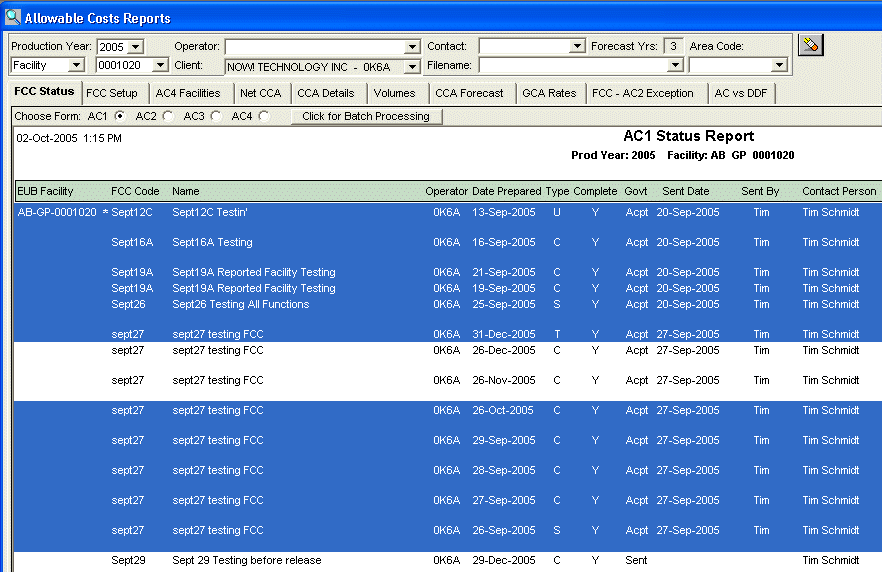
Once you have the FCCs highlited, click the Click for Batch Processing button

and you will see the AC Forms Batch Process window below.
If you are creating AC1 files, only AC1 choices are available, creating AC2 files, only AC2 choices are available, etc..
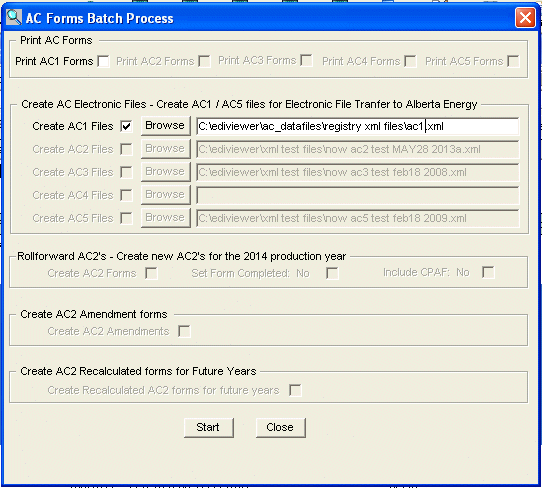
- Clicking the Create AC1 Files check box will allow you to enter the file name you want to use.
- The Browse button will help you find the folder you want to save your file in.
- Choosing to create AC1 files may result in 5 files being created from this one file name you specify (see example below). AC1 files are XML files and the filename should end with .xml
- Choosing to create AC2-AC5 files only creates the one filename you specify. AC2-AC5 files are text files and the filename should end with .xml
In the example above the AC1 filename is ac1.xml, but when the files are created, the names will be changed to reflect what type of AC1s they include.
If we have chosen all 5 types of AC1s, the filenames generated would be:
ac1_setup.xml
ac1_change.xml
ac1_change_opr.xml
ac1_term.xml
ac1_unterm.xml