To Retrieve data, do the following:
- Choose a Producer at the top of the window.
- Choose a Prod Mth at the top of the window. The production months in the dropdown list are from invoices and estimate files that have been imported or from data entered previously on this window.
- Click the Retrieve button on the toolbar. If there is data for this producer and production month, it will be displayed.
- If there is no data for this producer and production month, you will be prompted to update data from imported Valuation files for the chosen month:

- Click Yes and you will see the data from the latest month now appear for this production month. You can now edit the prices and posted minimum prices where needed. If you choose No you are saying you want to manually add rows/prices for each facility. If you click No by mistake, just click the Retrieve button again to get the copy prompt.
To add or insert a new row, do the following:
- Choose a Producer at the top of the window.
- Choose a Prod Mth at the top of the window.
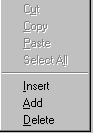
- Right-click your mouse where you want to add the
row to get a popup menu, and then choose add or
insert.
- The production month and producer code will be populated with the same production month that you have picked at the top of this window. If you want to change the production month, just enter what you want in yyyymm format, for example, 200710.
- Enter the Facility and Average Net Value.
To delete a row, click on the row you want to
delete and do the following:
- Right-click your mouse to get a popup menu and
choose delete. The row is removed from the
screen but is not deleted until you scroll to
another row or click the Save toolbar button.
Note: You will not be able to add
or delete rows if you are in read only mode.
|
To Sort, click on the headings. To
sort by Facility, click on the Facility heading and
the Plants will be sorted in ascending
order. Clicking on the Plant heading again will sort
the Facilities in descending order. This can be done for
any column by clicking on the heading.
Clicking on the Sort toolbar button gives you the option to sort by multiple columns at once. |
|

