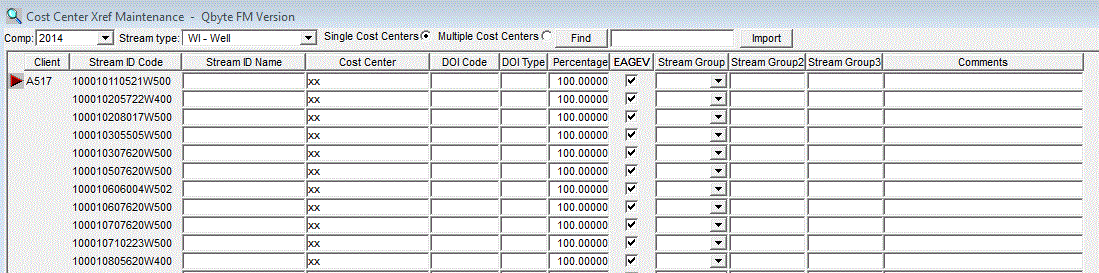
To Retrieve streams:
- Pick a stream type from the Stream ID Type list
box at the top of the window.
- Click the Retrieve button at the top left of the
toolbar or choose File | Retrieve from the menu.
- All streams from all invoices you have imported
will be retrieved to the screen.
|
To find a stream:
- enter the full or partial stream id code into the
Stream ID Code at the top of the window and click
the Find button. If the stream is found, the row
will be highlited. If the stream is not found, a
message will be displayed.
- Clicking the Find button again will find the next
stream id code starting from the row you are on.
- To start the find from the first row, you must
scroll to row 1 and click on row 1 so the red
arrow to the left of the row points to row 1.
|
To enter your own names or cost centers:
- simply enter the name or cost center you
want in the column and click the Save button
on the toolbar. The next time you click on the
list box for this Stream ID Type, you will see
your name appear instead of the government name.
The cost center will appear on the Detail by
Stream report.
|
Stream Groups:
- Stream Groups are assigned to streams as an additional way to query data in the Stream Xref window, as well
as in the Reports window. These groups are created in the Stream Group Maintenance window. The
names of the stream groups can be personalized in the EDI Viewer Set-up file. If interested, have your
database person contact us.
|
Import Button:
- The Import button in this window is used to fill in blank Cost Centers
by linking with your Accounting System. Clicking the button will bring up the following window:
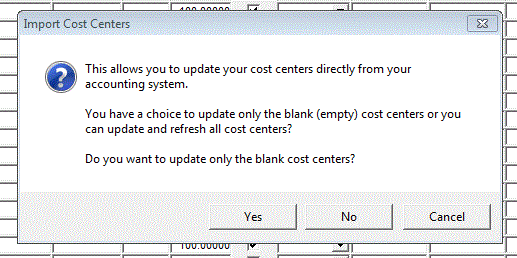
Using this function requires us to work with your database person to write a procedure tailored
to your accounting system. Contact us if you are interested.
|
Multiple Cost Centers:
- The Multiple Cost Centers button allows users to assign several Cost Centers to a single Stream:

This is useful in situations where a user may want to split Well Group charges to the individual wells.
|