
|
EDI Viewer - Crown Royalty Invoice Import
|
The Crown Royalty Invoice Import is used to bring files from Petrinex into EDI Viewer. Multiple files can be imported at the same time.
You must now choose a File Type when importing files.
Remember to always import the Invoice Detail file before the Invoice Summary file when importing EDI files.
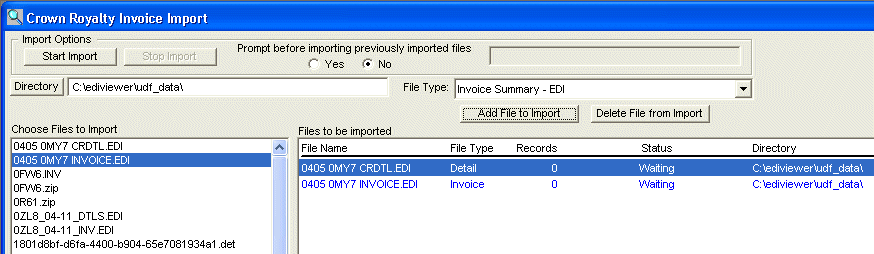
The functions of the import window are:
- Import Options
- Start Import: Run the import if
any files were chosen.
- Stop Import: Stop the import.
The current file being imported will be not be
saved, but any files before this would have been
saved in the database.
- Prompt before importing previously
imported files: By choosing Yes,
the system will prompt you if any files
you are importing have already been imported. If
you chose to continue, the previously imported
data for this invoice will be deleted and the new
file imported. By choosing No,
the system will automatically delete any
previously imported files before importing the
new data.
- To the right of the Prompt before importing
previously imported files buttons, is a Status
area. This will show the the total
number of files being processed and which file is
currently being processed. You can also see which
file is being processed from the Records and
Status columns in the Files to be imported list.
- Directory: Change directories to chose
files for importing. When using this function, you must
chose any file in the directory list and then press Open.
If you do not chose a file, the system will not change to
the chosen directory.
The area where the directory name is displayed is also
editable. You can key a directory name into this area and
the system will automatically change to this directory
and display the files in that directory.
- File Type: You must now choose a file type for the file you want to import.
There are now 19 choices:
- Invoice Summary - An EDI file which helps populate reports. Import it after Invoice Details.
- Invoice Details - Another EDI File. This file populates Facility and Stream Xref windows, and
provides data on reports. It is also needed for the GL Upload tool
- Condensate Royalty Calculation Detail Report - Used for the Condensate Details report, and required when breaking condensate
charges to a stream level
- Otherwise Flared Solution Gas - This file provides information for reports
- Weighted Average Royalty Rate - This file provides information for reports
- Condensate Royalty Rate - This file provides information for reports
- Raw Gas Weighted Average Royalty Rate - This file provides information for reports
- Allowable Costs Monthly Deduction - Provides data for reports. Is also used to import deduction amounts
for the Monthly Proration in the GL Upload window
- Allowable Costs Estimate - This file provides information for reports
- Crown Share Capital Cost Allowance Summary - Provides information for Charge code 080 found on the invoice.
This file can also be used to import adjustment amounts for the
Annual Proration in the GL Upload window. Can be imported as a .csv file
as of January 2015.
- Crown Share Custom Processing Fee Summary - Provides information for Charge code 090 found on the invoice.
This file can also be used to import adjustment amounts for the
Annual Proration in the GL Upload window. Can be imported as a .csv file
as of January 2015.
- Crown Share Operating Cost Allowance Summary - Provides information for Charge code 095 found on the invoice.
This file can also be used to import adjustment amounts for the
Annual Proration in the GL Upload window. Can be imported as a .csv file
as of January 2015.
- Annual AC Restriction Adjustment - Provides information for Charge code 101 found on the invoice.
This file can also be used to amounts for the
AC Restriction Proration in the GL Upload window
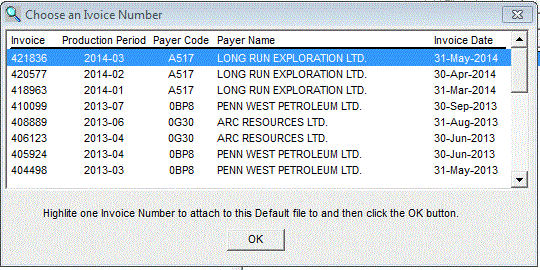
- Default File - Used for 4 different Defaults reports, you will be prompted to link each file to an
Invoice in order to provide a timeline for when the Defaults files were issued.
- Crown Annual CCA/CP/Opcost Adjustments - Provides a breakdown of Monthly Cost Allowance, Crown Share, and Annual Cost Adjustments.
- Crown Facility Avg Price Details - Provides a detailed breakdown of Facility Average Price.
- D&CC Submission Details Report - Submitted Drilling & Completion costs data to be imported into EDI Viewer.
- C* Calculation Details - Provides a detailed breakdown of a well's C* credit.
- C* Draw Down Summary - Provides a summary of the C* credit.
- C* Draw Down Details - Provides a detailed look at the C* credit.
Add File to Import: Click this button AFTER you have chosen a File Type to add files of this selected type into the Choose files to
Import area into the Files to be
imported area.
- Delete File from Import: Click this button to Delete
files matching the selected File Type from the Files to be
imported area.
- Choose files to Import: This list show the files available for importing. Click on the file you want to import, choose the File Type, and then click the Add File to Import button. You can use Shift/Click or Ctrl/Click to select mulitple files at the same time.
- Files to be imported: This list shows
which files are going to be imported. All files to be
imported will show up in blue. When the file is being
imported, the color will change to red and the Records
and Status fields will show the number of records
imported and the percent completed. When file has been
imported or was not imported because of an error, the
color will change to black.
To delete a single file from this list,
click the Right mouse button and choose Delete from the
popup menu. To delete all files for a specific File Type, choose the File Type and click
the Delete Files from Import button.