 |
EDI
Viewer - PT GL Upload Window
|
EDI Viewer can create a GL Batch file for importing to your
accounting system.
Before trying to create the GL Batch file, make sure you have done the following steps:
1. Link Mill Rates to Tax Jurisdictions / Municipalities
2. (Re-)Calculate Tax Payable
3. Link Cost Centers to Linear and Industrial properties where applicable
4. Set up GL Accounts
Procedures to create the GL Batch File:
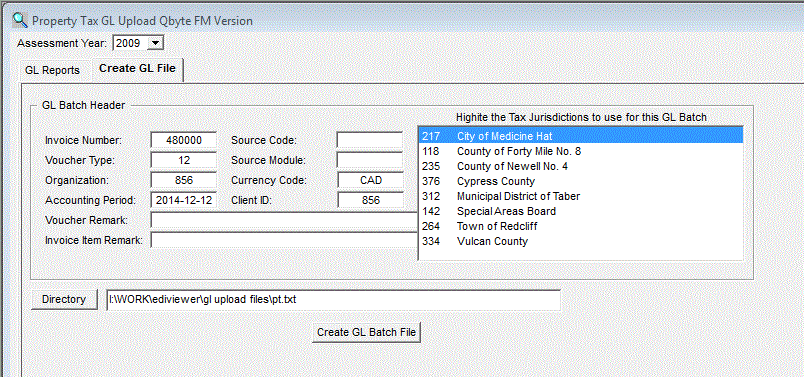
- Choose an Assessment Year
- Fill out the GL Batch Header information- this varies based on your financial system
- Specify directory and filename: clicking directory will let you navigate to the desired file location. Type in your
file name and click save. This is where your GL file will be saved to once it is created
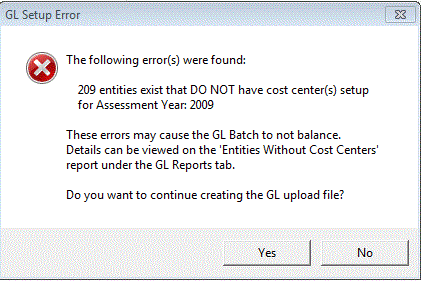
- Click the Create GL Batch File button to start the process. You may see a warning message appear, like the one below,
indicating there are properties without cost centers in your system. This is only a warning and does not stop you from creating
the GL Batch file, but you will NOT have GL entries for those UWI's without cost centers and your batch file may not balance. You may click Yes to continue and create the GL Batch file.
- When the GL Batch file as been created, run the GL Batch Summary and Detail reports on the GL Reports tab to make sure the batch is balanced:
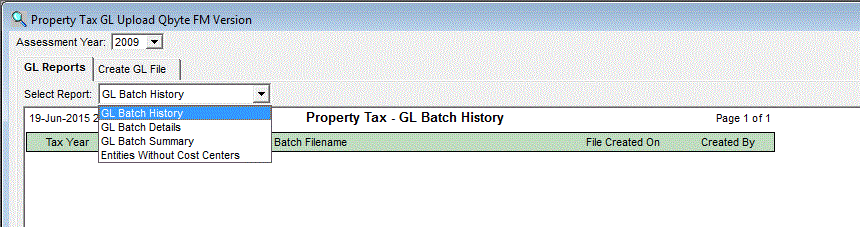
If the batch does not looked balanced, you can create the GL file as many times
as you need.
There are usually 2 reasons the GL Batch may not be balanced:
- There are properties that are missing cost centers. properties missing cost centers are not included in the upload process.
- You may be missing a GL Account for one or more of the GL Account types.
|