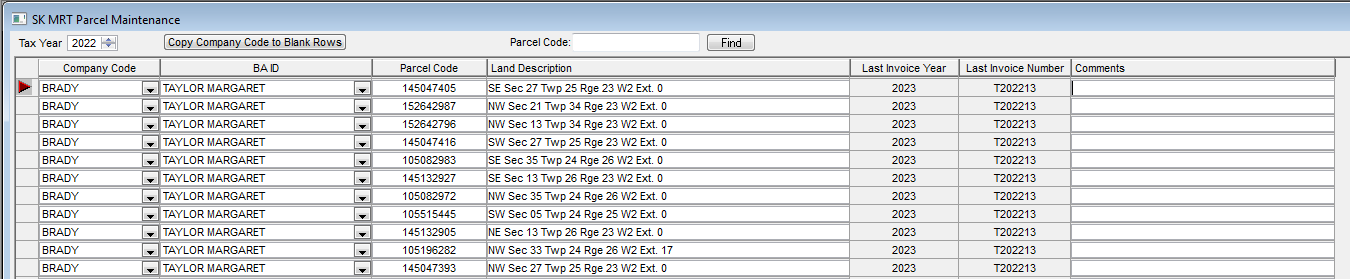
The Parcel Maintainance window is used to view invoice land
Parcels, and to link them to your GL Company.
| |
|
To add a new row, you can the following:
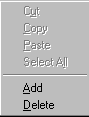
- Right-click your mouse to get a popup menu and choose add or insert.
- Press the shortcut keys, CRTL and A (add).
- Click the edit menu at the top of the screen and then choose add or insert.
To delete a row, click on the row and do any one of the following:
- Right-click your mouse to get a popup menu and choose delete.
- Press the shortcut keys, CRTL and D.
- Click the edit menu at the top of the screen and then choose delete.
|
 |
|
Business Rules:
- Choose a Tax Year and click Retrieve on the toolbar to see title data.
- All parcels should be linked to a Company. This is needed for invoicing and financial systems.
- The Copy Company Code to Blank Rows button will fill in the Company Code for Parcels without a Company code, based on the row you've highlighted when the Copy... button is clicked. Make sure you save any changes prior to using this button.
- To use the Parcel Code at the top right of the window, fill in all or your partial title code and click Find.
|
|
| To Print, click the Print toolbar button or choose Print from the File menu. |
|