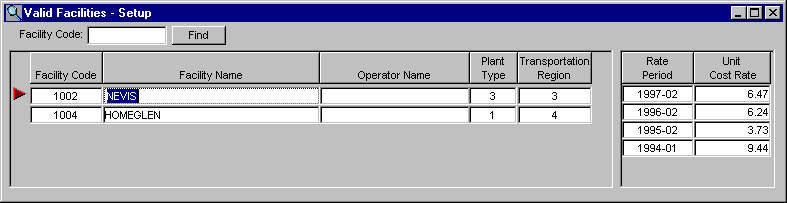
To find a facility:
- enter the full or partial facility code into the
Facility Code at the top of the window and click
the Find button. If the facility code is found,
the row will be highlited. If the facility code
is not found, a message will be displayed.
- Clicking the Find button again will find the next
facility code starting from the row you are on.
- To start the find from the first row, you must
scroll to row 1 and click on row 1 so the red
arrow to the left of the row points to row 1.
|
|
To add or insert a new row, do the following:
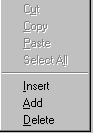
- Right-click your mouse where you want to add the
row to get a popup menu, and then choose add or
insert.
Example:
- To add a facility, right click your mouse
under the Facility Code heading.
- The facility name and operator name
are for information only and are not
used to validate anything on the
invoice.
- When entering a plant type, the unit
operating cost rates that were
entered on the Valid
Plant UOCR window will appear for
that plant type. These rates can be
deleted or modified if you chose.
- To add unit operating cost rates, right click
your mouse under the Rate Period heading.
To delete a row, click on the row you want to
delete and do the following:
- Right-click your mouse to get a popup menu and
choose delete. The row is removed from the
screen but is not deleted until you scroll to
another row or click the Save toolbar button.
Note: You will not be able to add
or delete rows if you are in read only mode.
|
 |
| To Sort, click on the headings. To
sort by Plant Type, click on the Plant Type heading and
the facilities will be sort by plant type in ascending
order. Clicking on the Plant Type heading again will sort
the plant types in descending order. This can be done for
any column by clicking on the heading. |
|
| |
|
| To Print, click the Print toolbar
button or choose Print from the File menu. |
|