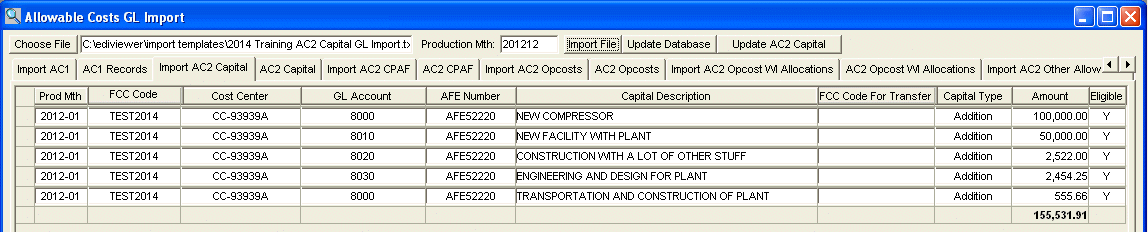
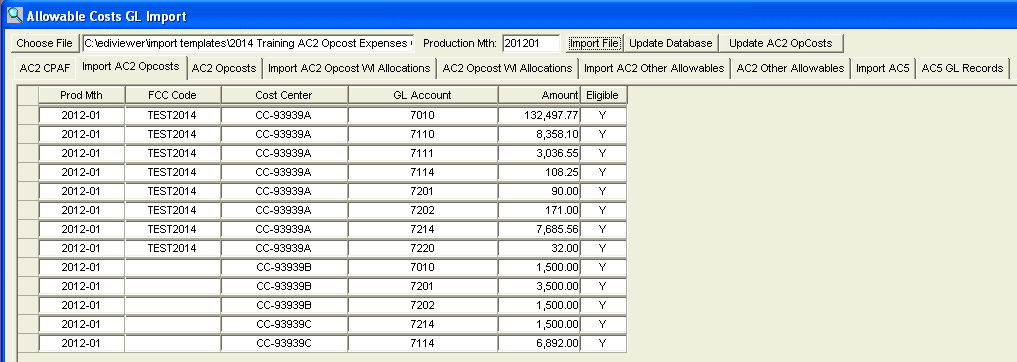
Procedures to import:
-
Ensure that the FCC you wish to work with has an associated AC1 (for AC1 Ownership Imports), AC2 or AC5 saved
and that the Cost Center(s) and GL Accounts
are set up. Cost Centers are setup on the Facility
Cost Center Setup window. GL Accounts are set up on the GL
Accounts window.
-
On the menu under Allowable Costs select Import GL Capital /
Operating Cost. The Allowable Cost GL Import window will pop up.
-
Create a file to be imported. We can provide Excel templates with business rules and instructions on how to properly format and save the template into a valid text delimited file.
-
To import a file pick a directory and the filename by clicking on
the Choose File button and navigating through the pop up window
to the desired file location. Click on the desired file and then click
the Open button. The path and file you clicked will show up next
to the Choose File button.
-
Make sure the appropriate tab is clicked (the viewing area should
be blank). Now, click on the Import File button in the upper right
hand corner. Data will now appear in the viewing area. No changes have
been made to the database yet. You can edit the data in the viewing
area.
-
When you are satisfied that the data is correct, click the Update Database
button now the data has been add to the database.
-
To view the any errors with the imported data click the tab on the immediate right; choose the
Production
Year you imported and click the Retrieve Button in the tool
bar.
- This report shows all invalid data, for the chosen Production Year, for the chosen Import Tab.
There are additional reports on this tab for validation, which will indicate whether a saved AC2, Cost Center, or GL account are missing.
If everything on this report looks correct, Click the Create/Update button to the right of Update Database.
You will see a confirmation pop-up that forms have been updated. These updates can be viewed on each individual form.
Business Rules:
- If you have already clicked 'Update Database', and must edit a field in the viewing area,
you must begin again from the 'Import File' step.
- You DO NOT want to see any empty rows in the viewing area. If you see blank rows at the
bottom of the viewing area after importing your file, you must edit your file.

|